
NewOur own Vetryx app
Vetryx for Windows
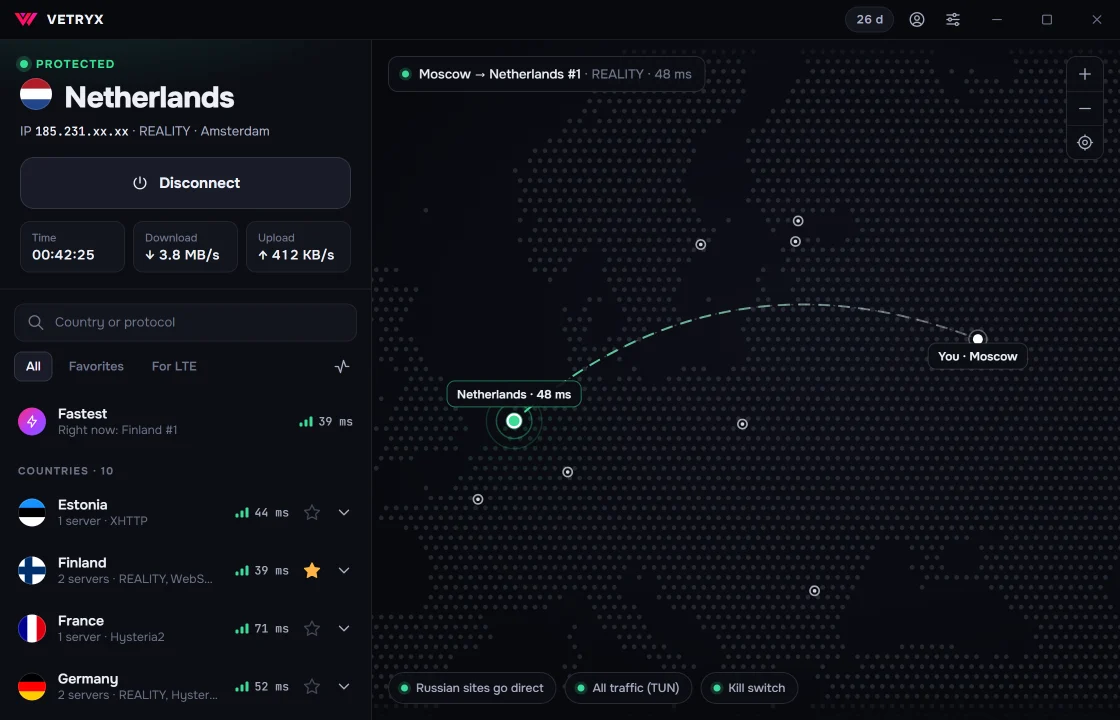
Connect in one click. The app picks the fastest server for you, and full-tunnel mode sends all of your computer's traffic through the VPN — games and messengers included.
This app is for computers. Open this page on a Windows PC; for your phone, see the Android app or the setup guide.
Included in every plan Updates itself English and Russian
Features
Everything you need in one window
One button
The app measures ping and picks the fastest server. You can also choose a country on the map or in the list.
Four protocols
VLESS + REALITY, XHTTP, WebSocket and Hysteria2. If a network blocks one, switch to a server with another.
All traffic or just the browser
“All traffic” mode routes every app through the VPN: games, Discord, Telegram. “Proxy” mode covers browsers and apps with proxy support.
Kill switch
If the connection drops, internet access stays blocked until Vetryx reconnects. Nothing leaks past the VPN.
Automatic failover
If a server stops responding, the app switches to another one and lets you know with a notification.
No admin rights to install
The installer runs without administrator rights. Windows asks for permission only once, when you first turn on “All traffic” mode.
Installation
Up and running in two minutes
-
1
Download and run the installer
Click “Download for Windows” at the top of the page and open the file. No administrator rights needed.
Seeing “Windows protected your PC”? Click More info, then Run anyway. Windows shows this for new apps that don't have many downloads yet.
-
2
Copy your subscription link
It's in your account on the website and in our Telegram bot. It's the same link you use on your phone.
No subscription yet? Choose a plan — from $4.25 a month.
-
3
Paste the link into the app
Click Paste from clipboard. The app loads the servers and checks their speed.
-
4
Click “Connect”
Done. To route games and all other apps through the VPN, turn on “All traffic” mode in Settings. Windows asks for administrator permission once — the Vetryx service needs it.
The computer takes one slot in your subscription's device limit. You can view and remove devices in your account.
Updates 0.2.6
The app checks for updates by itself and offers to install the new version. Already installed? The update will arrive on its own — no need to download anything.
Requirements
- Windows 10 or 11, 64-bit
- A Vetryx subscription — any plan
- An internet connection during the first install: on older Windows versions the installer downloads the WebView2 component
FAQ
Frequently asked questions
Windows says “Windows protected your PC”. What should I do?
Windows shows this for new apps that don't have many downloads yet. Click “More info”, then “Run anyway”. Only download the installer from vetryx.xyz.
Do I need a separate subscription for my computer?
No. Use the same subscription link as on your phone. The computer takes one slot in your device limit; you can see your devices in your account.
How do I update the app?
The app checks for updates by itself and offers to install the new version. You can also check manually in Settings, under Updates.
How do I uninstall the app?
Open Settings → Apps → Installed apps, find Vetryx and click Uninstall.
How can I check the file hasn't been tampered with?
Compare the SHA-256 checksum of the downloaded file with this one. In PowerShell: Get-FileHash Vetryx_0.2.6_x64-setup.exe
19BE3EABAFD0B3A8798A4019C8A514C52BF8C81A68ABD96C50D99321175EAEA2
Something not working?
Message us — we'll help you install and connect. A real person from our team replies, not a bot.